
The call happens locally
The employee makes or receives an ordinary SIM call. On the supported Android setup, the app captures the call details. Saved remarks and statuses add the customer’s business context.
Remote-team call tracking
Call tracking for remote teams brings the business calls of every home-based or field caller into one report, wherever each person works. RMDialer connects the calling day across home offices, branches and field visits. Give Android callers their own leads, then review synced activity and customer outcomes from your Web CRM.
Free personal dialer. Paid features include a 3-day trial; no card required.
Team plans: ₹159/user/month in India, $29/user/year elsewhere, billed yearly + taxes →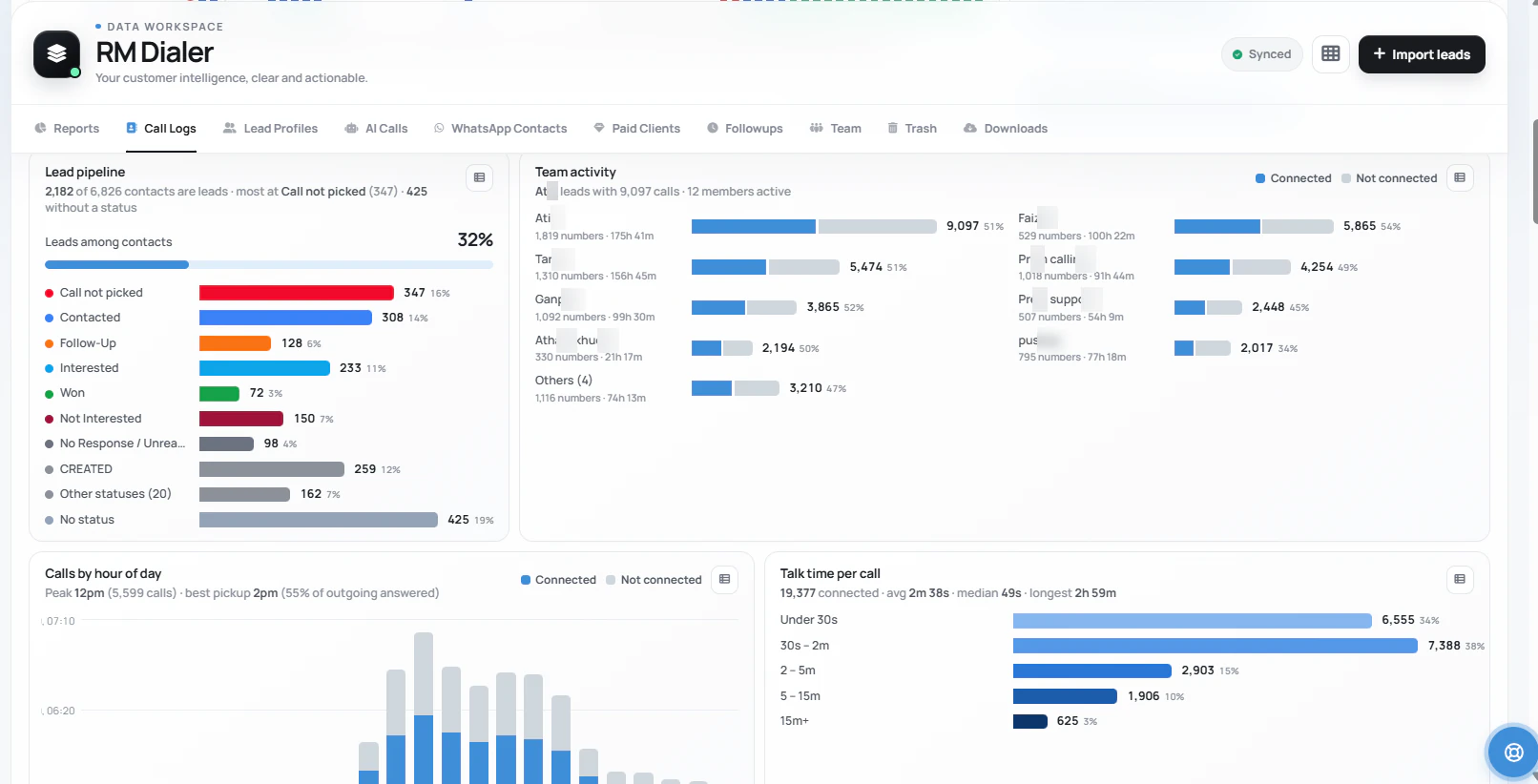
A phone without data can still make a SIM call. Give delayed syncing a chance to catch up before reading the report as a complete day.
Written by Vamika Godara · Reviewed by Prisha Khatri · Updated
Short answer
Call tracking for a remote team records the business calls each distant caller makes and gathers them in one manager report. RMDialer tracks a remote sales team’s calls on each caller’s own Android phone: it records the business SIM calls and syncs them to one team account. Managers review employee call reports and customer outcomes from the Web CRM. Callers work from assigned leads on their own handsets, while report freshness depends on each device’s connection and sync state.
Key takeaways
Why track a distributed team
What a manager gets when callers in different homes, branches and towns report into one account.
Each Android phone syncs its business calls to one team account from wherever the caller works.
Calls stay ordinary SIM calls on each person's phone; nothing new to install at home.
The Web CRM shows connected and unanswered calls, numbers dialled and talk time per employee.
Assigned leads tell every home-based caller where to start, with no shared sheet to fight over.
Statuses and remarks travel with each call, so the manager reads what happened, not only how often.
Only business calls on the agreed SIM are shared; there is no hidden monitoring.
Start with ownership
A shared spreadsheet does not always tell a home-based caller whether someone else has already contacted a customer. Assign work deliberately, review the lead’s history and keep the outcome on the record that the next colleague will see.
The assigned-lead queue shown here gives a caller a defined starting point. They can work through the list from the handset and save the result after each conversation. The manager does not need to wait for separate end-of-day messages to reconstruct who called whom.
Before adding an entire branch, agree which account owns the records, which employees can access them and how a handover is handled when someone is absent. Those decisions are part of rollout, not something a call count can settle.
Explore assigned calling and team CRM →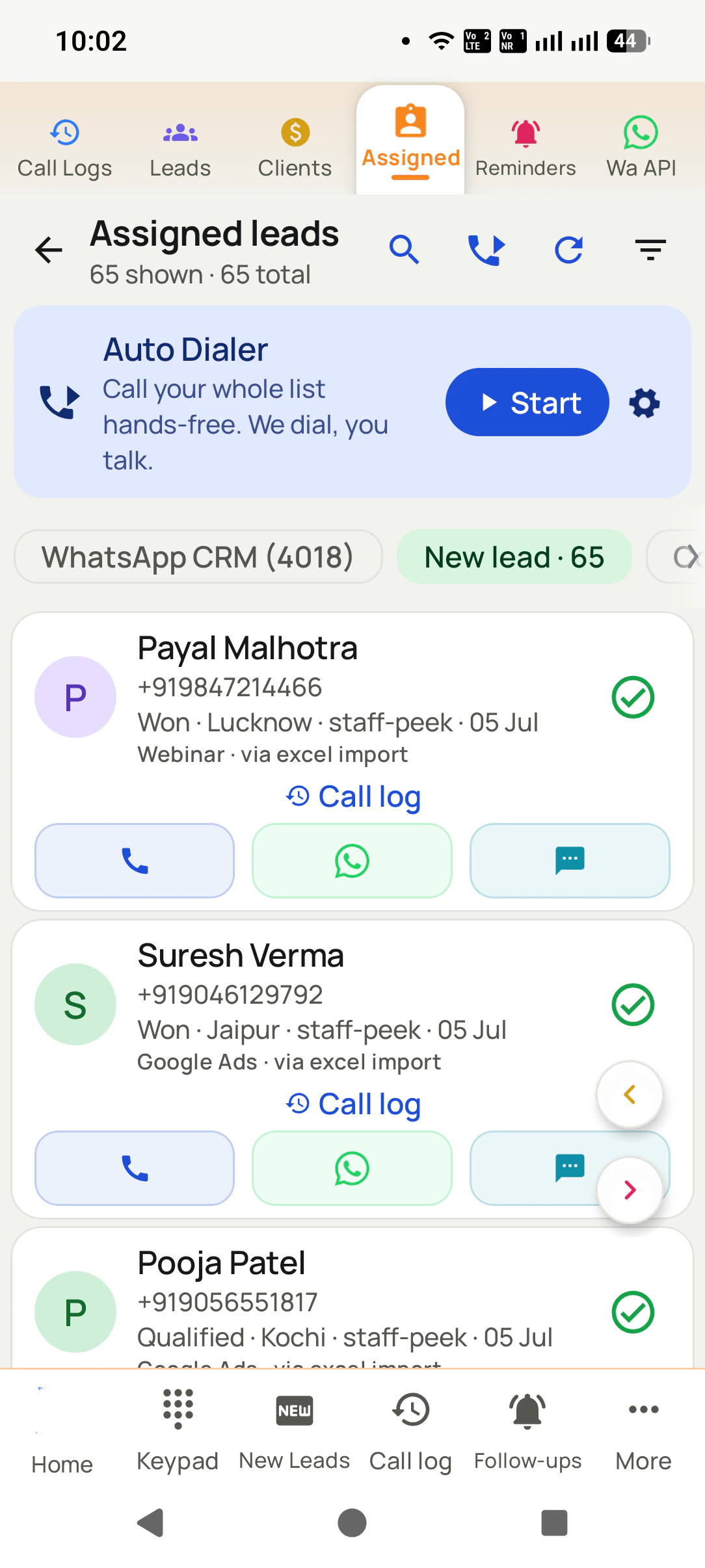
Understand the update path
The voice call travels through the employee’s mobile carrier. The business record reaches the owner through a separate data connection. That distinction matters when someone works from a low-signal branch or commutes between customer visits.
The employee makes or receives an ordinary SIM call. On the supported Android setup, the app captures the call details. Saved remarks and statuses add the customer’s business context.
Data access and the configured sync behavior determine when the record reaches the account. Device restrictions or a lost connection can create a delay. Check the actual handset rather than assuming a universal update interval.
Use employee and date filters to inspect the activity received. If a handset has stopped reporting, resolve the gap with that caller before comparing it to colleagues whose records are up to date.
“Remote” describes where the staff work. It does not mean remote access to their screen or live access to call audio. RMDialer’s reporting workflow has neither requirement.
Coach with context
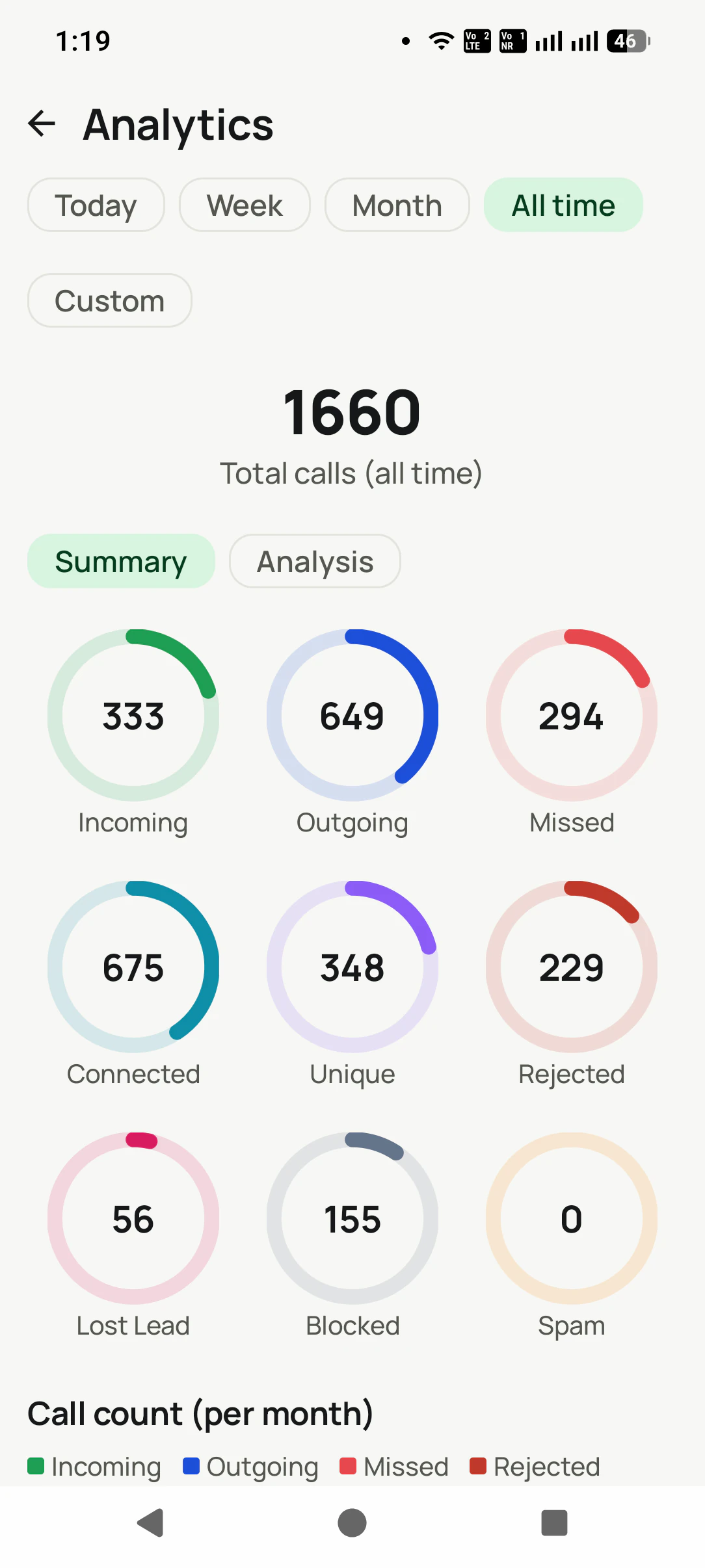
A caller working through new enquiries and a colleague following up detailed proposals have different tasks. Review connected calls, unique contacts, talk time and the saved outcomes alongside the assigned workload.
A high number of attempts with few connections may call for better list quality or a different time window. A conversation with no saved next step needs a process review. Neither situation becomes clearer by asking for another screenshot of the caller’s personal phone.
Use the daily view for unresolved work and longer ranges for patterns. When a customer request is waiting on another department, record that dependency so the caller’s report does not lose the reason for the delay.
Read the fields in an employee call report →A pilot that checks the difficult cases
Start with the office, a home connection and a weak-data location if those represent your team. The following is a proposed test plan, not a claim that every handset updates within a fixed time.
| Test | What to do | What the manager checks |
|---|---|---|
| Normal connected work | Place a business call, save the result and keep data on. | Correct employee, number, activity and customer context. |
| Data temporarily off | Make a SIM call, restore data and allow synchronization. | The delayed record arrives and is attributed correctly. |
| Incoming call missed | Leave a test enquiry unanswered, then return it. | The missed attempt and the later conversation are distinguishable. |
| Caller handover | Reassign a test lead with an existing note. | The receiving colleague has the context needed to continue. |
| Business and personal separation | Review SIM choice and access settings with the employee. | Only the agreed business scope is shared with the right people. |
A rollout people understand
Tell the team what is captured, why it is needed and who can review it. Use a visible app, a clear business-SIM policy and appropriate account access. Avoid asking a caller to share unrelated personal information to prove that they worked.
Write down what happens when a phone is replaced, an employee leaves or a device stops syncing. Previously synced records and a disconnected handset are different concerns. Check account access during a handover and verify the replacement device before the next calling session.
The trial is also the right time to confirm supported Android devices and any recording setup you require. For iPhone callers, plan around the lack of automatic native call-log capture rather than expecting the Android reporting workflow to carry over unchanged.
Plan your team’s seats
₹795/month equivalent
Five paid seats × ₹159/user/month = ₹9540 billed yearly, plus taxes, in India.
Outside India: five seats × $29 = $145 a year, before tax.
This is a billing example, not a monthly plan. Confirm any additional seats needed for your owner or manager setup. Mobile service and messaging-provider charges are separate.
Review billing periods and included features →Try it with your own workflow
Show us how many callers you have, their devices and where they work. Evaluate a real employee report and a delayed-sync scenario before expanding the rollout.
Team features, one plan
₹159/user/month
₹1908 per user, billed yearly, plus taxes, in India. $29 per user per year, or $12 per user for 3 months, outside India.
The personal dialer, call log and personal analytics are free forever. Team access and saved lead workflows require a plan. SIM charges and any WhatsApp provider charges are separate.
Compare free and paid features →Yes. Each participating Android phone captures its own SIM call activity and syncs records to the team account. The manager reviews employees and date ranges in the Web CRM. Callers do not need to share an office network.
The calling workflow runs on the Android handset: the assigned leads, SIM calls, outcomes and reminders are available there. The manager can use a browser for wider reporting. Test the team’s actual devices before rollout.
The team view depends on the phone capturing and syncing the record. Connectivity, permissions and background restrictions can affect when an update arrives. This page does not promise a fixed number of seconds. Check the handset’s last-sync state and test expected timing during your trial.
Normal SIM calling can continue when cellular voice service is available. Cloud updates need an internet connection, so the owner’s view can lag behind the phone. Reconnect and confirm the queued records arrive before treating a quiet dashboard as a quiet employee.
No. This is a visible business-calling workflow for staff who know the app is installed and what work activity is shared. Agree the business SIM, account access and excluded personal information before setup. It is not a covert monitoring tool.
The workflow on this page reports calling activity and customer records. Location is a separate, visible option: field staff can turn on live location, which records their route only between punch in and punch out. There is no keystroke capture or screen surveillance. Choose measures relevant to the agreed calling role instead of using call totals to infer everything an employee did.
RMDialer’s SIM workflow does not offer live listen-in, whisper coaching or barge-in. Call recording is a separate supported-device setup handled during training. If live audio supervision is mandatory, this workflow is not a substitute for a platform that provides it.
Agree which SIM is used for business and configure the intended capture and privacy settings during onboarding. Make a test business call and verify the manager’s view. A written policy alone does not prove the handset is configured correctly.
The iPhone app cannot automatically read the native call log. Use supported Android phones for this capture workflow. A manager may still access the Web CRM in an iPhone browser to review records that Android team members have synced.
Check its last sync, data connection, app access and device settings with the staff member. Records already synced remain in the account, but a stopped handset cannot supply new activity until the issue is resolved. Investigate the reporting gap before judging performance.