
Follow-ups slip
A highlight only helps when the file is open. A follow-up promised for Saturday is missed because nobody opened Excel on Saturday.
NewRMDialer is now on iPhone as well as Android · every feature except the call log
Managing leads in Excel
Excel is a fine place to start managing leads if the sheet is built with care: fixed columns, dropdowns, a highlight on due follow-ups and a duplicate check. Here is that sheet, the signs you have outgrown it and how it moves into RMDialer.
Free personal dialer. Paid features include a 3-day trial; no card required.
Team plans: ₹159/user/month, billed yearly + taxes →
It becomes a problem only when more people and more follow-ups arrive than the sheet can hold.
Short answer
Manage leads in Excel with one row per lead, eight fixed columns, dropdowns for source and status, a highlight on follow-ups due today and a formula that flags duplicate numbers, then sort by the next follow-up date every morning. When follow-ups or shared editing start to slip, import the same sheet into a CRM rather than rebuilding it.
Key takeaways
Eight columns, each with a job
Most lead sheets fail because they grow a column every week. Start with these eight and add another only when you are sure you will filter by it.
| Column | What to put in it | Excel tip |
|---|---|---|
| Date added | The day the enquiry arrived | Format as Date so it sorts properly; never type “yesterday”. |
| Name | Customer’s name as they said it | Freeze this column with View, Freeze Panes, so it stays visible as you scroll right. |
| Phone | Ten-digit mobile, no spaces | Format as Text so Excel does not turn it into 9.87E+09. Add =COUNTIF(C:C,C2)>1 in a helper column to spot duplicates. |
| Source | Instagram, referral, walk-in, website | A Data Validation dropdown keeps spellings identical, which filters need. |
| Status | New, Contacted, Quoted, Won, Lost | Another dropdown. Five to seven values, no free text. |
| Next follow-up | The date you promised to call again | Conditional Formatting rule =AND($F2<>"",$F2<=TODAY()) paints due and overdue rows. |
| Owner | Who is responsible for the lead | A dropdown of team names; filter by it every morning. |
| Last remark | One line from the last call | Keep only the latest; the history is where Excel starts to struggle. |
If you would rather not build it yourself, the lead management Excel template has these columns, dropdowns and highlights ready to download.
An interior design studio in Bengaluru
Picture an interior design studio in HSR Layout, Bengaluru, run by two designers. Enquiries for modular kitchens and full-home interiors come from Instagram, from past clients and from people who visit the studio.
Sort by Next follow-up, oldest first. The highlighted rows at the top are today’s calls: three site-measurement confirmations and two quotes waiting for an answer.
Each designer filters the Owner column to their own name. Nobody calls the other’s client by mistake.
After each call, change Status, overwrite Last remark and set a new Next follow-up date. The highlight disappears as each row is handled.
Type in the weekend’s new enquiries, pick the Source from the dropdown and check the duplicate column before assigning an owner.
For two people and forty active leads, this works well. The routine is an illustration; the three habits (sort, filter, update after every call) are the part that makes any lead sheet work.
Where the sheet starts to crack
Excel rarely fails all at once. It fails in small ways that are easy to excuse until they cost a customer:
A highlight only helps when the file is open. A follow-up promised for Saturday is missed because nobody opened Excel on Saturday.
Overwriting Last remark keeps the sheet tidy and loses the story. Three calls later, nobody remembers what was quoted first.
Whether a lead was actually rung depends on somebody typing it. Busy days are exactly when nobody does.
A third person joins, two people edit one row and a status silently changes back.
Keep the sheet, lose the chores
The move keeps everything the sheet already holds. Save the file as Excel or CSV, import it on the phone or in the Web CRM, and match your headers to lead fields; the status dropdown and follow-up dates carry across as long as they sit in their own columns. From then on calls log themselves on each lead, reminders ring on the phone and the history of every conversation is kept.
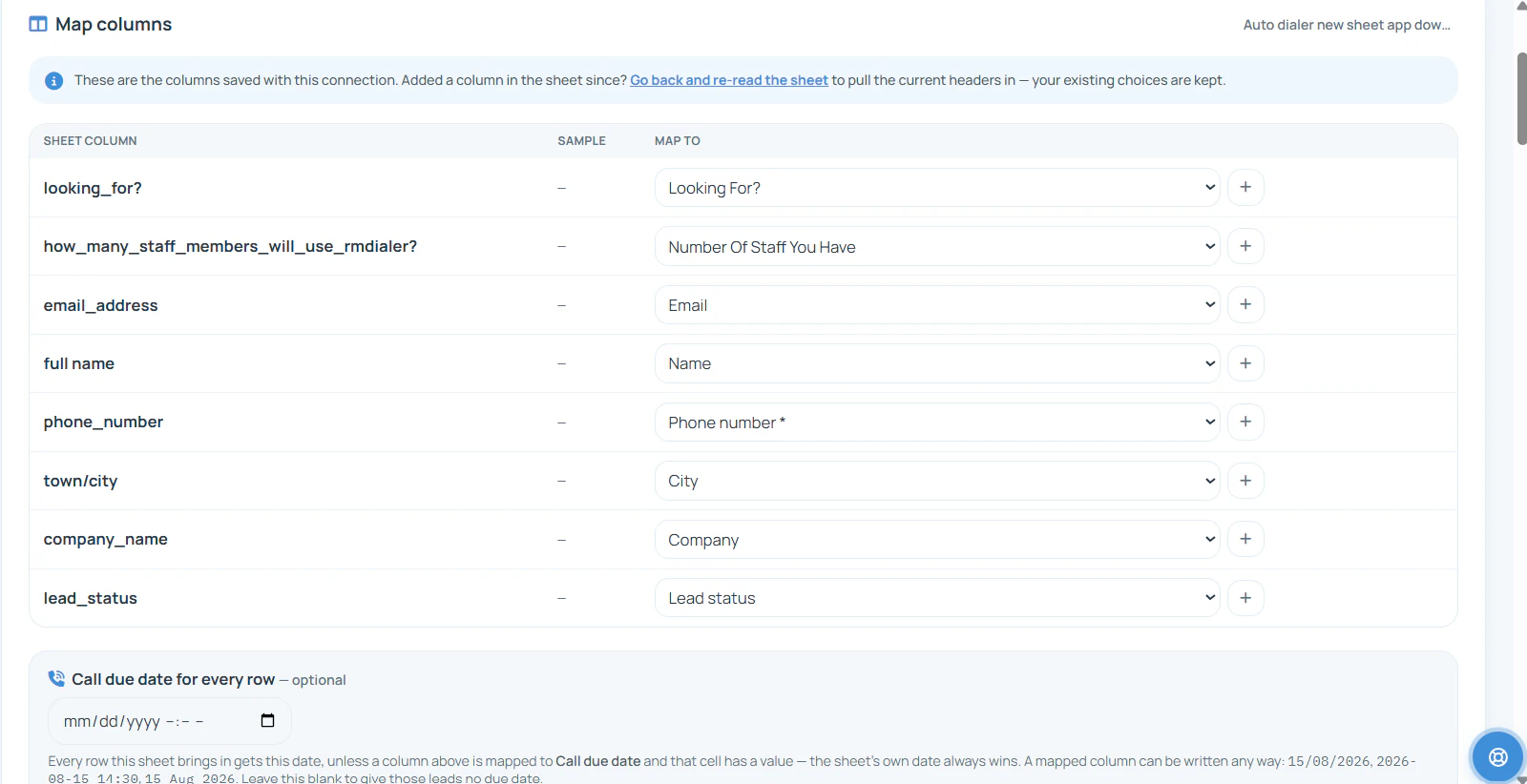
If your team prefers to keep typing into a sheet, connect a Google Sheet as a live sheet instead, so each new row becomes a lead on its own; see auto lead import. To dial the imported list hands-free, read turning an Excel list into a calling campaign, and for a team of several people, the lead assignment tool.
Try it with your own workflow
Send your current sheet. We import it, map your columns, keep your statuses and follow-up dates, and show the first reminder ringing on a phone.
Team features, one plan
₹159/user/month
₹1,908 per user, billed yearly, plus taxes.
The personal dialer, call log and personal analytics are free forever. Team access and saved lead workflows require a plan. SIM charges and any WhatsApp provider charges are separate.
Compare free and paid features →Keep one row per lead, a fixed set of columns (date, name, phone, source, status, next follow-up, owner, last remark), dropdowns for source and status, and a highlight on follow-ups due today. Sort by next follow-up each morning and work from the top.
You can build a basic one: a lead table with dropdowns, highlights for due follow-ups and filters by owner. What Excel cannot do is log your calls, ring you when a follow-up is due or show the history of each lead without a second sheet. That is where a CRM like RMDialer takes over.
Date added, name, phone, source, status, next follow-up date, owner and last remark. Add a budget or product column only if you will actually filter by it. Every extra column is one more thing people forget to fill.
Select the rows, choose Conditional Formatting, New Rule, Use a formula, and enter =AND($F2<>"",$F2<=TODAY()) where F is the follow-up column. Pick a fill colour. Due and overdue leads light up every time the file opens.
Add a helper column with =COUNTIF(C:C,C2)>1 where C holds the phone numbers; it shows TRUE for any number that appears twice. Format the phone column as Text first, or numbers with leading country codes will not match.
Yes, if the file is shared online, but two people editing the same row at once can overwrite each other, and nobody can tell who changed a status. Beyond two or three people, give each person a filtered view or move to a CRM.
When follow-ups start being missed, when two people call the same customer, or when you cannot tell which source brought last month’s sales. Any one of those means the sheet has become the bottleneck rather than the list.
Not from Excel itself. Import the sheet into RMDialer on the phone or in the Web CRM, and the auto dialer can ring the list one number after another, with the outcome of each call saved back on the lead.
Save the sheet as Excel or CSV, import it, match your column headers to lead fields and choose who receives the leads. Only the phone column is required. Your statuses and follow-up dates come across if they are in their own columns.
Google Sheets is easier to share with a small team and can be read by RMDialer as a live sheet, so new rows become leads by themselves. Excel is better for heavy formulas on one computer. For a calling team, a shared sheet feeding RMDialer is often the best middle step.
An Excel file can be copied, forwarded or left on a laptop in seconds, and it has no record of who opened it. In RMDialer employee permissions control who can see or export leads. The plan is ₹159 per member per month when the year is prepaid in India, before tax.